
 Kashifa Jafar
Technology Writer & Contributor
Kashifa Jafar is a technology writer and contributor at FutureTechExpert with 4+ years of experience in technology writing and content creation.
Read Full Bio of Author →
Kashifa Jafar
Technology Writer & Contributor
Kashifa Jafar is a technology writer and contributor at FutureTechExpert with 4+ years of experience in technology writing and content creation.
Read Full Bio of Author →
 Sameena Begum
Health, Technology & Digital Content Reviewer
Sameena reviews selected health, wellness, technology, and digital content for clarity, factual presentation, and reader usefulness.
Read Full Bio of Reviewer →
Sameena Begum
Health, Technology & Digital Content Reviewer
Sameena reviews selected health, wellness, technology, and digital content for clarity, factual presentation, and reader usefulness.
Read Full Bio of Reviewer →
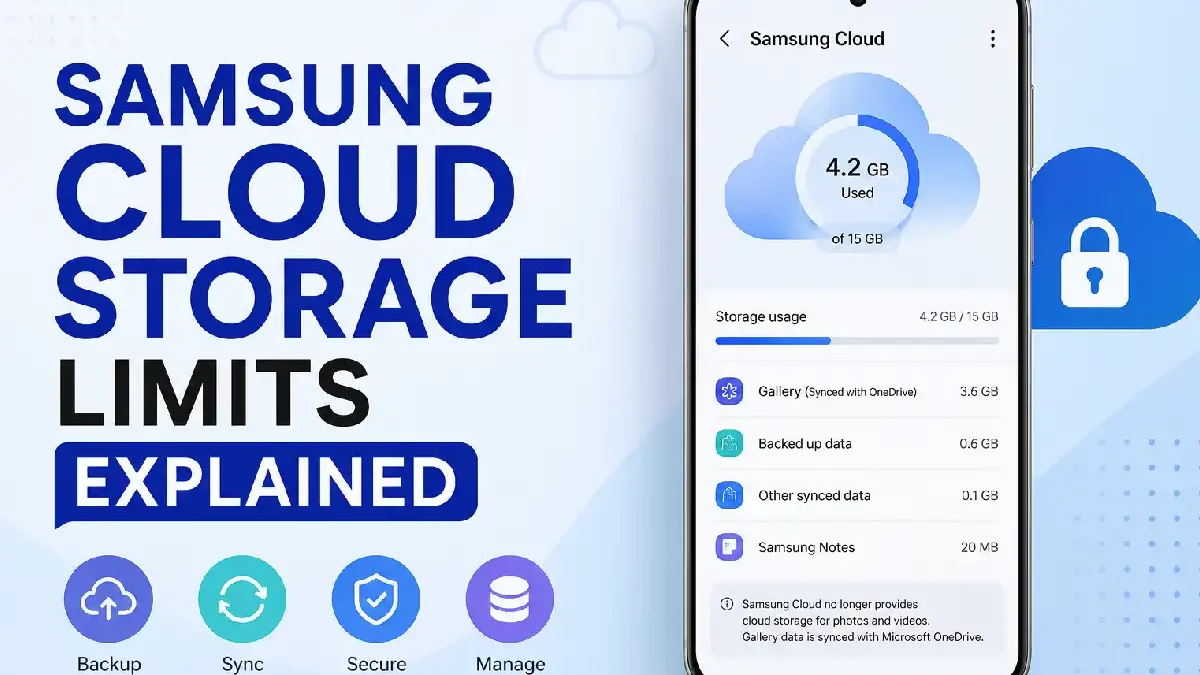
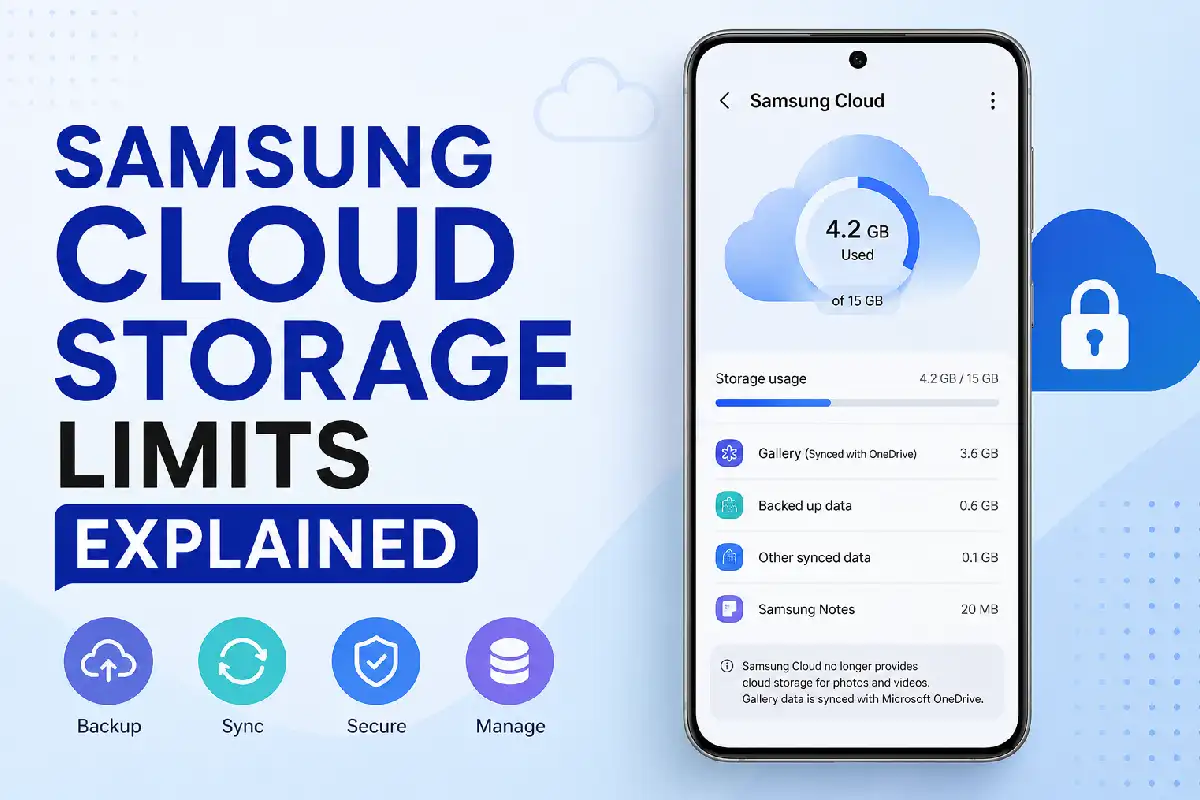
If you are curious about Samsung Cloud Storage Limits Explained, no other would have experienced anything similar to your situation. You would have seen a big change in the offering by Samsung Cloud from previous versions that had found favor in backing up multiple data types with 15 GB cloud storage.
This is the most recent information on Samsung Cloud storage rules for 2026, supported data formats, free storage space, backup limitations and practical tips to maximize your storage space. Discover when Samsung Cloud will work well for you, and when a different cloud storage service will be more suitable.
Before worrying about storage limits, it’s important to understand how Samsung Cloud Storage works, including the types of data it can back up and sync across your Galaxy devices.
 This article is part of
Storage of Cloud Computing Resources
Samsung Cloud Storage at a Glance (2026)
| Feature | Samsung Cloud (2026) | Official Resource |
| Free Storage | No separate gallery cloud storage | https://www.samsung.com/support |
| Gallery Backup | Uses Microsoft OneDrive | https://support.microsoft.com/onedrive |
| Device Backup | Supported | https://www.samsung.com/support |
| Contacts Sync | Supported | Samsung Account |
| Calendar Sync | Supported | Samsung Account |
| Samsung Notes Sync | Supported | Samsung Notes |
| Restore Device | Supported | Samsung Cloud |
Table of Contents
Free Storage Availability
The latest decline is not providing free storage of your photos, videos and other personal data on the Samsung Cloud. In years past, Samsung gave Samsung users free storage to back up data. But they have since upgraded their photo and video storage to OneDrive from Microsoft, and Samsung Cloud is now a sync and backup service only.
Today:
- Photos are stored using Microsoft OneDrive.
- Samsung Cloud focuses on syncing Samsung services.
- Device backups remain available.
- Samsung Account synchronization continues.
Knowing how to use Samsung Cloud Storage efficiently can help you organize files and reduce unnecessary storage consumption before reaching your limit.
What Is Still Free?
| Service | Available Free |
| Contacts | Yes |
| Calendar | Yes |
| Samsung Notes | Yes |
| Device Settings | Yes |
| Wi-Fi Passwords | Yes |
| Home Screen Layout | Yes |
| Photos | No (Requires OneDrive) |
| Videos | No |
Current Storage Policies
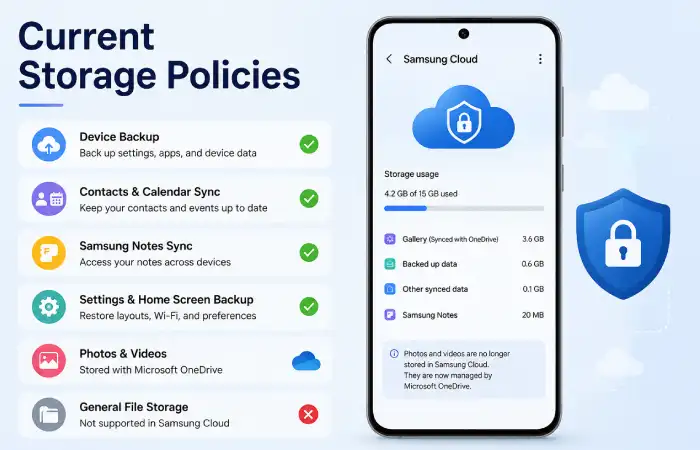
Samsung has overhauled its approach to cloud storage in recent years. As of 2026, Samsung Cloud is no longer one-size-fits-all cloud storage for photos/videos and personal files. Now, it is concentrated on device backup, synchronization and restoration of key Samsung services, with the gallery storage for photos and videos being handled by Microsoft OneDrive.
Instead, it works mainly for:
- Device backup
- Samsung app synchronization
- Restoring settings after reset
- Syncing contacts
- Samsung Notes
- Calendar
Large personal files should be stored using:
| Cloud Service | Best For |
| Microsoft OneDrive | Samsung users |
| Google Drive | Android ecosystem |
| Dropbox | File sharing |
| Box | Business users |
Following a complete Samsung Cloud backup guide ensures your important data is safely stored while making the best use of your available cloud space.
Supported Data Types
While Samsung Cloud will no longer act as a complete cloud storage service, it will continue to backup and synchronize just about every bit of important device data you need it to. In fact, these backups will ensure your Samsung Galaxy device can be restored following a factory reset, device replacement or software update.
But, large personal files like videos, images and downloaded files are no longer stored in Samsung Cloud and are transferred to Microsoft One Drive.
| Supported Data | Backup Available |
| Contacts | Yes |
| Calendar | Yes |
| Samsung Notes | Yes |
| Internet Bookmarks | Yes |
| Call History | Yes |
| Messages | Device dependent |
| Clock | Yes |
| Home Screen | Yes |
| Wi-Fi Settings | Yes |
| Apps List | Partial |
| Gallery Photos | Through OneDrive |
Backup Restrictions
Occasionally, Samsung Cloud has a few restrictions.
| Restriction | Details |
| No direct photo storage | Uses OneDrive |
| No file manager storage | Not supported |
| Large media backups | External service required |
| Regional availability | Some features vary |
| Unsupported third-party app data | Cannot be backed up |
Common Backup Errors
- Samsung Account sync disabled
- Poor internet connection
- Outdated software
- Insufficient OneDrive storage
- Sync conflicts
Photos often consume the largest amount of cloud storage, so learning how to store photos in Samsung Cloud efficiently can help you stay within your storage limit.
Managing Limited Storage
While Samsung Cloud doesn‘t currently have upgradable storage like previously, you are still able to organize your backups.
Delete Unnecessary Backups
Remove:
- Old device backups
- Duplicate synced devices
- Outdated settings
Sync Only Important Data
Turn off sync for the documents you seldom open.
Example:
- Samsung Internet History
- Voice Recorder
- Samsung Keyboard Dictionary
Use OneDrive for Photos
Instead of filling local storage:
- Enable Camera Upload
- Organize albums
- Archive older media
Storage Optimization Tips
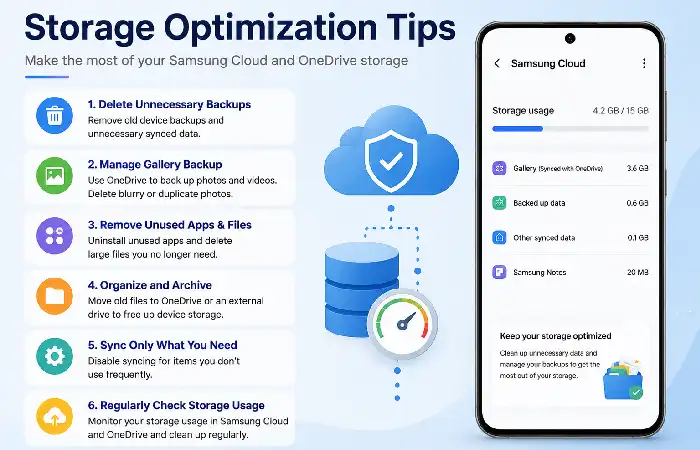
These are best practices to follow.
| Tip | Benefit |
| Delete duplicate photos | Saves space |
| Empty recycle bin | Frees storage |
| Compress videos | Smaller backups |
| Remove unused apps | Less device clutter |
| Archive old media | Faster backups |
| Enable automatic sync | Better recovery |
Samsung Cloud vs Other Cloud Storage Services
| Feature | Samsung Cloud | OneDrive | Google Drive |
| Device Backup | Yes | No | Partial |
| Gallery Backup | Via OneDrive | Yes | Photos app |
| Free Storage | Limited | 5 GB | 15 GB |
| Cross-platform | Limited | Excellent | Excellent |
| Office Integration | No | Excellent | Google Workspace |
| Samsung Integration | Excellent | Excellent | Good |
Many Galaxy users also compare Samsung Cloud vs OneDrive to determine which service offers better storage capacity, syncing, and file management.
Which Option Is Best?
| User Type | Recommended Service |
| Samsung phone owners | Samsung Cloud + OneDrive |
| Android users | Google Drive |
| Windows users | OneDrive |
| Business users | OneDrive Business |
| Students | Google Drive |
If Samsung Cloud’s storage limits don’t meet your needs, comparing Samsung Cloud vs Google Drive can help you decide whether switching services is worthwhile.
Frequently Asked Questions (FAQ)
Is Samsung Cloud still offering free storage?
Samsung Cloud has discontinued cloud storage for photos/videos. Gallery storage now defaults to Microsoft OneDrive; the dedicated Samsung Cloud service will remain limited to syncing the supported Samsung services as well as device backups.
What data can Samsung Cloud actually restore?
According to Samsung Cloud, contacts, calendars, Samsung Notes, device settings, home screen layout, Wi-Fi settings and some samsung app data can remain backed up to the new Samsung Cloud. Photos and videos remain stored via OneDrive integration.
Is Samsung Cloud good enough for storing photos?
No. Samsung encourages the usage of MS OneDrive as a photo & video storage solution. The Samsung Cloud is not meant to remain a media storage platform.
What I do to cut down on samsung cloud storage?
Delete your old device backups, deactivate synchronization of unnecessary items, organize your media on OneDrive, and regularly declutter your device remove duplicates and unnecessary documents.
Can I retrieve my mobile from Samsung Cloud after resetting?
Yes. When you sign in with the same Samsung Account, your previous backup will remain used to restore supported settings and data, if backup remain created before.
Conclusion
It has evolved from just a cloud storage destination for a Samsung device, into its own private backup and synchronization service. Since 2026, photos and videos remain saved directly through Microsoft OneDrive, Samsung Cloud will still be backing up contacts, Samsung Notes, calendar events, device settings, home screens, and launcher settings. Understanding these constraints and what your device can support, will help you avoid frustrations when backing up data.
For ultimate peace of mind the recommended combination is to use Samsung Cloud to back up and restore your device and to use OneDrive or another reliable cloud service to host all or most of your photos, videos, and large files, maintaining your backup settings by removing data over time to maximize the available space will facilitate seamless restoration of your files then when you upgrade or reset your device.
Kashifa Jafar is a technology writer and contributor at FutureTechExpert with 4+ years of experience in technology writing and content creation.
Read Full Bio of Author →Sameena reviews selected health, wellness, technology, and digital content for clarity, factual presentation, and reader usefulness.
Read Full Bio of Reviewer →