
 Kashifa Jafar
Technology Writer & Contributor
Kashifa Jafar is a technology writer and contributor at FutureTechExpert with 4+ years of experience in technology writing and content creation.
Read Full Bio of Author →
Kashifa Jafar
Technology Writer & Contributor
Kashifa Jafar is a technology writer and contributor at FutureTechExpert with 4+ years of experience in technology writing and content creation.
Read Full Bio of Author →
 Sameena Begum
Health, Technology & Digital Content Reviewer
Sameena reviews selected health, wellness, technology, and digital content for clarity, factual presentation, and reader usefulness.
Read Full Bio of Reviewer →
Sameena Begum
Health, Technology & Digital Content Reviewer
Sameena reviews selected health, wellness, technology, and digital content for clarity, factual presentation, and reader usefulness.
Read Full Bio of Reviewer →
If you‘ve just bought a Samsung Galaxy phone or even if you‘ve had one for a while but want to keep your essential data backed-up, Learning How to Use Samsung Cloud Storage is one of the best steps you could take.
Not only does Samsung Cloud allow you to back up your contacts, settings, messages, calendars and other supported data, but it also allows you to restore that data if you ever change phones or do a factory reset. Although Samsung has moved photo syncing to other services throughout the years, it still remains a good backup option for Galaxy phones.
If you’re new to the service, start by learning how Samsung Cloud Storage works before exploring its practical uses.
In this tutorial, you will find instructions on how to set up Samsung Cloud, how to back up and restore data, how to free up space, fix backup errors as well as how it compares with other backup services available in 2026.
 This article is part of
Storage of Cloud Computing Resources
Table of Contents
Setting Up Samsung Cloud
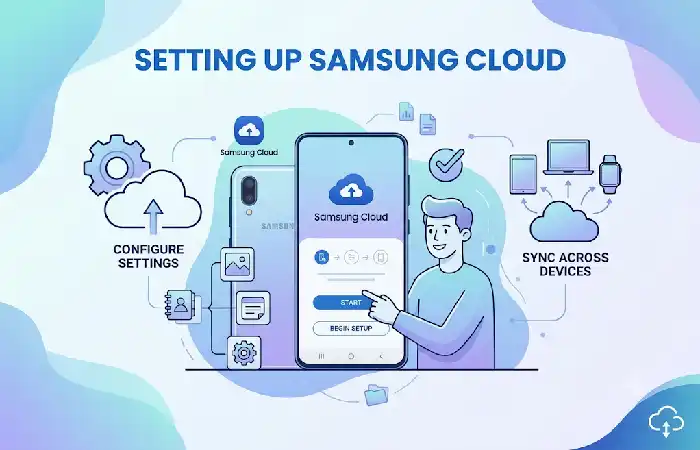
Getting started with Samsung Cloud couldn’t be simpler guiding you through, step by step, it takes mere minutes to set up. Your initial use of Samsung Cloud necessitates having a Samsung Account and being having signed into a Galaxy device (phone or tablet) with current One UI.
Once logged in, Samsung Cloud will automatically keep your essential data, contacts, calendar, Samsung Notes, preferences and a general everything else it can take.
Steps
- Open Settings
- Tap your Samsung Account
- Select Samsung Cloud
- Sign in if required
- Enable Cloud Backup
Most Samsung Galaxy phones, with the exception of Galaxy S9 and Note 9, with One UI have Samsung Cloud included.
Requirements
| Requirement | Needed |
| Samsung Account | Yes |
| Internet Connection | Yes |
| Wi-Fi Recommended | Yes |
| Latest One UI Update | Recommended |
Resource: Samsung Support (Samsung Cloud Setup)
Tips for a Smooth Setup
- You must verify your Samsung Account email before you can turn on backups.
- Update your software. Make sure it‘s running the current version so you can get the latest Samsung Cloud improvements.
- Look at what data categories are included in the backup as supported items can differ between device and version of One UI.
- Monitor your cloud storage space to avoid failures during synchronization.
You are now done. Your Samsung Cloud account will backup, sync, and restore your Galaxy anytime you need. Thanks to Samsung Cloud, it was never easier to back up and prepare yourself for a new Galaxy.
Backing Up Your Device
Supported information is automatically backed up by Samsung Cloud.
Manual Backup
- Open Samsung Cloud
- Tap Back Up Data
- Select data types
- Tap Back Up Now
Automatic backups is when the device is on Wi-Fi, is plugged in to a charger, has plenty of battery capacity, and the screen is turned off.
Supported Backup Items (2026)
| Data Type | Supported |
| Contacts | Yes |
| Calendar | Yes |
| Samsung Notes | Yes |
| Messages | Yes |
| Call History | Yes |
| Home Screen Layout | Yes |
| Settings | Yes |
| Clock | Yes |
| Apps & App Settings | Partial |
| Photos | Depends on device/version |
Before using Samsung Cloud regularly, follow this Samsung Cloud backup guide to ensure your important data is safely protected.
Syncing Samsung Data
Unlike backups, Samsung syncing provides the way of keeping supported information fresh on all Samsung devices using the same Samsung Account.
Items commonly synced include:
- Contacts
- Samsung Notes
- Calendar
- Samsung Internet
- Reminders
Enable syncing by:
Settings → Samsung Account → Samsung Cloud → Sync
Prevents you to have the same changes to show up on your other Galaxy devices.
One of the most popular ways to use the service is to store photos in Samsung Cloud for automatic backup and easy access.
Managing Storage Space
The amount of available storage in the Samsung Cloud is limited, therefore managing the storage regularly can prevent failure of the backup.
Tips
- Delete outdated backups
- Remove unnecessary app backups
- Keep only your active device backups
- Review storage usage monthly
Storage Management Comparison
| Feature | Samsung Cloud | Google Drive | OneDrive |
| Galaxy Integration | Excellent | Good | Good |
| Device Backup | Excellent | Good | Limited |
| Cross-platform | Moderate | Excellent | Excellent |
| Automatic Restore | Excellent | Good | Moderate |
Restoring Data to a New Device
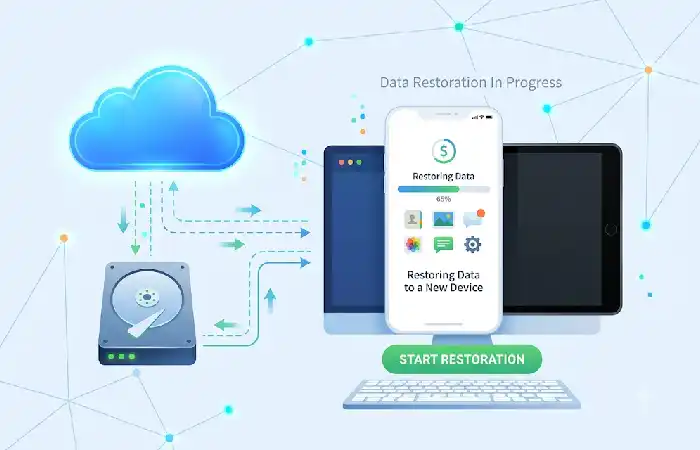
Changing to another Galaxy Phone is fairly easy.
Restore Steps
- Turn on your new Galaxy phone
- Log into the same Samsung Account
- Open Samsung Cloud
- Choose Restore Data
- Select your latest backup
- Wait until restoration finishes
You are also able to restore during the first run phone setup wizard.
If you’re deciding between cloud platforms, compare Samsung Cloud vs Google Drive to understand which service better fits your storage needs.
Troubleshooting Backup Errors
On some occasions, backups fail for common reasons.
| Error | Cause | Solution |
| Backup Failed | Weak internet | Connect to stable Wi-Fi |
| Not Enough Storage | Storage full | Delete old backups |
| Sync Not Working | Samsung Account issue | Sign out and back in |
| Restore Failed | Outdated software | Update One UI |
| Missing Data | Unsupported content | Verify supported backup items |
Most of the backup failures are resolved by Storage check, Software update, Samsung Account(Proxy) in solid state.
Many Samsung users also consider Samsung Cloud vs OneDrive before choosing where to store photos and files.
Samsung Cloud vs Other Backup Solutions (2026)
| Feature | Samsung Cloud | Google Backup | Smart Switch |
| Built into Galaxy | Yes | Yes | No |
| Restore During Setup | Yes | Yes | Yes |
| Wireless Backup | Yes | Yes | Limited |
| Local Backup | No | No | Yes |
| Device Migration | Good | Good | Excellent |
| Beginner Friendly | Excellent | Excellent | Excellent |
Samsung Cloud Workflow (2026)
Account of Samsung
│
▼
Samsung Cloud Enabled
│
▼
Choose Data
│
▼
Automatic Backup
│
▼
Cloud Storage
│
▼
Restore Anytime
Best Practices
- Enable automatic backups.
- Use Wi-Fi for large backups.
- Check backup status after major updates.
- Keep your Samsung Account secure with two-factor authentication.
- Maintain an additional local or external backup for important files.
Understanding the Samsung Cloud storage limits helps you avoid running out of available space while syncing your data.
Frequently Asked Questions
Is Samsung Cloud free?
Samsung Cloud is a backup service included on supported Samsung Galaxy devices to provide cloud backup features (storage and available features differ depending on device and country).
Does it still support Samsung Cloud photo backup?
The amount of photo backup support you will receive depends on what generation device you have and what version of software you are running. Please check your device for supported backup options.
Can Samsung Cloud recover the application configuration?
Yes, supported app settings and some app data may be restored onto supported Galaxy devices.
Is it possible to use Samsung Cloud on more than one device?
Yes. Sign in with the same Samsung Account to sync and restore supported data across your Galaxy devices.
Why is my Samsung Cloud backup failing?
These may be caused by a variety of issues such as a lack of resources, an unstable internet connection, outdated applications, or problems synchronising accounts.
Conclusion
Samsung Cloud is still arguably the best method to safeguard important information on your Galaxy device in 2026. If you’re wondering how to set up Samsung Cloud, get automatic backups working, sync compatible data, optimise your storage, and recover your info to a fresh device, you‘ll greatly minimise the chances of losing anything valuable. To truly fully safeguard your stuff, remember to back up locally or to a third-party Cloud too as part of an ideal backup plan.
Kashifa Jafar is a technology writer and contributor at FutureTechExpert with 4+ years of experience in technology writing and content creation.
Read Full Bio of Author →Sameena reviews selected health, wellness, technology, and digital content for clarity, factual presentation, and reader usefulness.
Read Full Bio of Reviewer →