
 Kashifa Jafar
Technology Writer & Contributor
Kashifa Jafar is a technology writer and contributor at FutureTechExpert with 4+ years of experience in technology writing and content creation.
Read Full Bio of Author →
Kashifa Jafar
Technology Writer & Contributor
Kashifa Jafar is a technology writer and contributor at FutureTechExpert with 4+ years of experience in technology writing and content creation.
Read Full Bio of Author →
 Sameena Begum
Health, Technology & Digital Content Reviewer
Sameena reviews selected health, wellness, technology, and digital content for clarity, factual presentation, and reader usefulness.
Read Full Bio of Reviewer →
Sameena Begum
Health, Technology & Digital Content Reviewer
Sameena reviews selected health, wellness, technology, and digital content for clarity, factual presentation, and reader usefulness.
Read Full Bio of Reviewer →
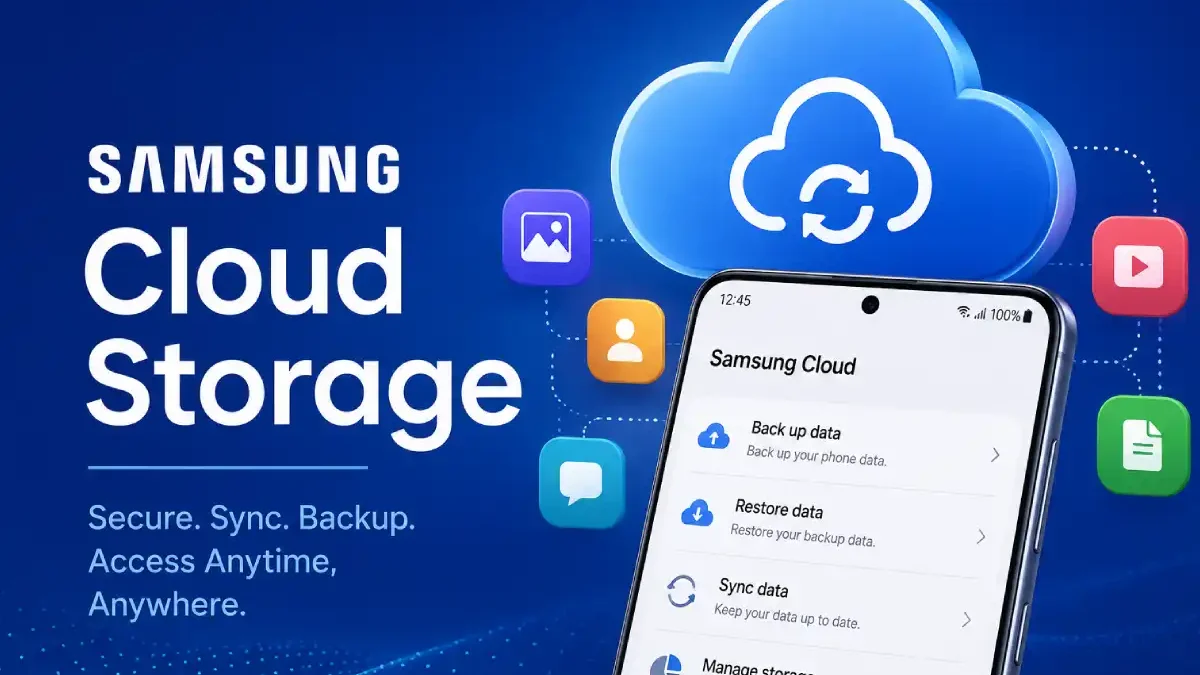
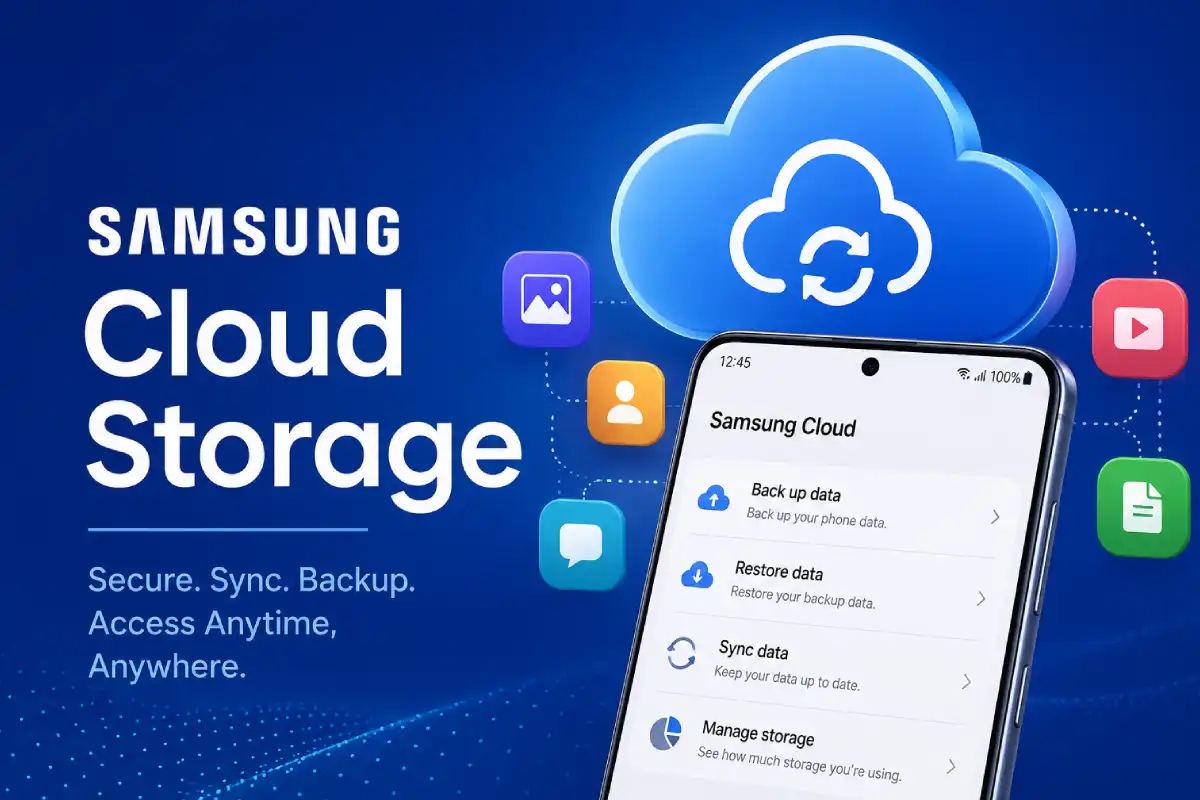
Samsung Cloud Storage still stands out as the most valuable service for Galaxy users who would like to back up data, sync data between multiple devices, or restore files after device lose or repairs. It applies to Galaxy S series mobile phone, Galaxy Fold, Galaxy Tab, and other Samsung devices.
Six years on since its introduction in 2010, Samsung Cloud has undergone some substantial changes in 2026. Samsung previously retired a few facets of its cloud provision, including Samsung Cloud Drive and Gallery Sync, yet functions to back up devices, synchronize settings and recover files still prevail. Furthermore, the updates to OneDrive prompted a deviation in the way Samsung users take care of images and clips in the cloud.
All you should be aware of about Samsung Cloud Storage is included in this one guide. Its explains how to set it up, how much it can store, backs up, troubleshoot, compares and offers alternatives to it.
 This article is part of
Storage of Cloud Computing Resources
Table of Contents
What Is Samsung Cloud Storage?
Samsung Cloud Storage (sc0m) is Samsung‘s internal cloud, which is enabled on every Galaxy device, it provides backup, synchronization and restoration of high-priority data across all your Samsung devices. It aims to keep your Samsung personal information safe so it can be recovered easily if you change your phone, reset to Factory Settings, or lose the device.
Other cloud storage services aim to store your files and documents, but with Samsung Cloud, you can safeguard data associated with your device, including Contacts, Messages, Call logs, Settings, Calendars, and even Samsung applications. Once you sign in to your Samsung Account, the service regularly backs up chosen items to Samsung‘s cloud servers, ready to be restored at any time.
Key Functions of Samsung Cloud
| Feature | Description |
| Data Backup | Automatically backs up important device data. |
| Data Restore | Recovers information after a reset or device replacement. |
| Device Sync | Synchronizes Samsung apps and settings across devices. |
| Account Integration | Works directly with your Samsung Account. |
| Security Protection | Uses encryption and authentication to protect data. |
How Samsung Cloud Works?
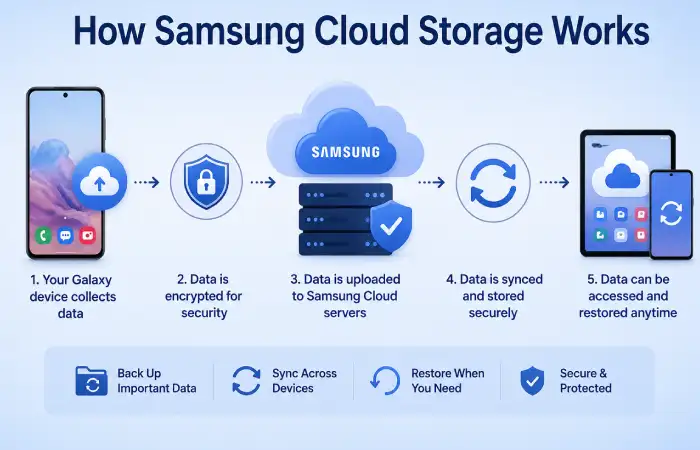
Samsung Cloud functions seamlessly once activated by the user on a Galaxy device. When WiFi is available and the backup conditions are satisfied, supported data is automatically uploaded to Samsung servers. Users then have access to backup/restore options via Settings.
What Data Can Samsung Cloud Store?
Samsung Cloud can back up and synchronize various types of information, including:
- Contacts
- Calendars
- Call history
- Messages
- Samsung Notes
- Samsung Internet bookmarks
- Home screen layouts
- Device settings
- Voice recordings
- Samsung Pass data
Important Changes to Samsung Cloud
Throughout the years, Samsung has altered the operation of its cloud platform. Services like Samsung Cloud Drive and Gallery Sync are now beginning to be removed, with photo and file storage relying more and more on third-party applications like Microsoft OneDrive. Currently, the only services provided by Samsung Cloud are device backup, synchronization, and restoration no drive use.
If you’re just getting started, learn how to use Samsung Cloud Storage to sync, manage, and access your files across compatible Samsung devices.
How Samsung Cloud Storage Works
Samsung Cloud Storage is a service that provides backup and synchronization of information from your phone to the Google cloud. Everything stored is tied to your Samsung Account and you are given a certain amount of free space. Once the user activates the service, it will automatically take copies of data and settings that it supports and will allow restoration of your info and settings when switching to a new phone, to factory reset or accidental deletion.
All of this is running behind the scenes, so it is very convenient for users to know the archives are safe, without having to do the remembering work of daily backups.
The Samsung Cloud Backup Process
The workflow is simple:
Samsung Galaxy Device
↓
Samsung Account
↓
Samsung Cloud
↓
Backup, Sync & Restore
When Samsung Cloud is activated:
- Your device collects supported data.
- The data is encrypted for security.
- Information is uploaded to Samsung’s cloud servers.
- Backups are stored securely.
- Data can be restored whenever needed.
Automatic Backups
Samsung Cloud is configured to run backups automatically when certain conditions are met. Backups usually take place when:
- The device is connected to Wi-Fi.
- The battery has sufficient charge.
- The phone is charging.
- The screen is turned off.
- Auto Backup is enabled.
This helps you to make sure that your most up-to-date information is always backed-up without impacting your everyday performance of the device.
Data Synchronization
As well as backup, Samsung Cloud synchronizes available Samsung services between multiple devices that are logged into a single Samsung Account.
Common synchronized data includes:
| Sync Category | Purpose |
| Samsung Notes | Keeps notes updated across devices |
| Contacts | Syncs contact information |
| Calendar | Updates events and schedules |
| Samsung Internet | Syncs bookmarks and browsing data |
| Samsung Pass | Syncs saved passwords and credentials |
| Samsung Health | Synchronizes health-related records |
This means any changes made on one Galaxy device can automatically appear on another connected device.
Device Restoration
Data restoration in Samsung Cloud is the ultimate feature of all.
When setting up a new Galaxy phone or recovering from a factory reset, Samsung Cloud allows users to restore:
- Contacts
- Messages
- Call logs
- Device settings
- Home screen layouts
- App settings
- Samsung app data
Samsung Cloud restores a good amount of your experience instantly so that you do not have to reconfigure everything from scratch.
Security and Data Protection
Samsung Cloud uses multiple security measures to protect user information:
- Encrypted data transmission
- Secure Samsung Account authentication
- Cloud-based storage protection
- Two-factor authentication support
- Device authorization controls
These security features ensures that no unauthorized access is provided but the backups will be there when they are needed.
Samsung Cloud vs Traditional Cloud Storage
A misconception about Samsung Cloud is that many people think it works as Google Drive or Dropbox, however its functionality is different.
| Feature | Samsung Cloud | Traditional Cloud Storage |
| Device Backup | Yes | Limited |
| Settings Restoration | Yes | No |
| File Storage | Limited | Yes |
| Photo Storage | Limited | Yes |
| Samsung Ecosystem Integration | Excellent | Moderate |
| Device Migration | Excellent | Limited |
Samsung Cloudis not intended to be used asS3-type general file storage platform. Instead, it is aimed to back up Galaxy device configuration and data.
To protect your important data, follow our complete Samsung Cloud backup guide for photos, contacts, settings, and more.
Why Understanding How Samsung Cloud Works Matters
The more you understand about the workings of the Samsung Cloud, the better you‘re able to utilize its backup and recovery features. Galaxy owners will find that the addition of automatic backup and sync features really ease the entire process of accident and upgrade recovery.
For Samsung owners the cloud is a safety net that constantly safeguards necessary data, while remaining integrated and synced with the Galaxy.
Features Available in Samsung Cloud
Samsung Cloud provides several useful features that are aimed at Galaxy users who need to safeguard data, maintain synchronization and retrieve content from cloud storage as quickly as possible. Although several of the traditional cloud storage services provided by Samsung Cloud were discontinued years ago, the service continues to be a core component of the contemporary Samsung range.
So, whether you‘re upgrading to a new Galaxy or protecting your current one, Samsung Cloud offers a number of great features that are all dependent on your Samsung Account.
Automatic Device Backup
Auto back up, one of the most important feature of Samsung Cloud, it will automatically save supported device data to the Samsung Cloud servers. This prevents the loss of data due to accidental deletion or aplication malfunctions or device damages.
Backed-up data may include:
- Contacts
- Messages
- Call history
- Clock settings
- Home screen layouts
- Wi-Fi settings
- App settings
- Voice recordings
Benefits:
- Protects important information
- Reduces manual backup effort
- Enables quick recovery after a reset
Data Restoration
Without a doubt, you can restore your backed-up data when registering a new Galaxy device or recovering your device after the factory reset through Samsung Cloud.
You can restore:
| Data Type | Restore Supported |
| Contacts | Yes |
| Messages | Yes |
| Call Logs | Yes |
| Device Settings | Yes |
| Home Screen Layout | Yes |
| Samsung Apps Data | Yes |
Great feature, takes a lot less time to get setup and will help you recreate the same device experience as you had with your last device.
Samsung Notes Synchronization
Sync your Samsung Notes easily across Galaxy devices with Samsung Cloud.
Key advantages:
- Notes update automatically
- Access notes from phones and tablets
- Prevent accidental note loss
- Maintain productivity across devices
Note taking becomes even more accessible for students, professionals, and content creators.
Contact and Calendar Sync
Samsung Cloud keeps your contacts and calendar items associated with your Samsung Account automatically up to date.
Benefits include:
- Automatic contact updates
- Event synchronization across devices
- Easy restoration after device replacement
- Reduced risk of losing important schedules
This feature is a real convenience for users who often jump back and forth between Samsung phones and tablets.
Samsung Internet Sync
Samsung Internet provides the option to sync browsing information.
Synced information includes:
- Bookmarks
- Saved pages
- Open tabs
- Browser settings
It makes the browsing experience smooth and simple across multiple Galaxy devices.
Samsung Pass Integration
Works with Samsung Pass, Samsung Cloud synchronizes login & passwords, update information.
Features include:
- Secure password storage
- Autofill support
- Cross-device credential synchronization
- Enhanced account security
This is to be helpful to users for carrying their online accounts much more manageable, but in the same time, concentrated on the security.
Why These Features Matter
Yet its ultimate role as of now is not a file storage service. But providing backup, syncing, and recovery options for Galaxy users. With backed-up information, device recovery, apps synchronization, and secured solutions combined, Samsung Cloud can maintain the ‘reliability’ of your crucial data and also convenient.
What Data Can Be Backed Up?
Perhaps the most significant benefit of Samsung Cloud Storage is that it will automatically back up your device‘s critical data for you, so you can safeguard your content and restore it when upgrading your device, resetting it, or losing data unexpectedly.
Instead of being a server for file storage, Samsung Cloud is mainly used to back up your devices information, personal info, and some Samsung apps data. Such categories of backups may be different according to a user device model, Android version, Country and Galaxy actual version.
Data Types Supported by Samsung Cloud Backup
The following categories are commonly supported by Samsung Cloud:
| Data Category | Backup Supported | Description |
| Contacts | Yes | Saves phone numbers, names, and contact details |
| Calendar Events | Yes | Backs up schedules and appointments |
| Call History | Yes | Stores incoming, outgoing, and missed call records |
| Messages | Yes | Saves SMS and MMS messages |
| Clock Settings | Yes | Preserves alarms and clock configurations |
| Home Screen Layout | Yes | Keeps app placement and folder organization |
| Wi-Fi Settings | Yes | Saves network information and preferences |
| Device Settings | Yes | Backs up selected system settings |
| Samsung Notes | Yes (Sync) | Synchronizes notes across devices |
| Samsung Internet Data | Yes | Saves bookmarks and browsing settings |
| Samsung Pass Data | Yes | Stores passwords and login credentials securely |
| Voice Recordings | Yes | Backs up supported recordings |
| Accessibility Settings | Yes | Preserves personalized accessibility preferences |
Samsung Apps That Support Synchronization
Samsung Cloud syncs data from multiple Samsung services associated with your Samsung Account.
Commonly Synced Apps
| Samsung Service | Sync Supported |
| Samsung Notes | Yes |
| Samsung Calendar | Yes |
| Samsung Contacts | Yes |
| Samsung Internet | Yes |
| Samsung Pass | Yes |
| Samsung Health* | Device dependent |
| Galaxy Store Preferences | Yes |
*Availability may depend on your region and device model.
Samsung Cloud Storage Limits Explained
Numerous users are shocked to learn Samsung does not have the old Samsung Cloud Drive service or premium storage anymore. Currently, storage is effectively used only for storage of backup and sync data corresponding to your Samsung Account.
Knowing the Samsung Cloud storage limits is worth considering as Samsung Cloud is no longer a cloud drive service. Looking at it in a different light, it does not offer many gigabytes of file storage for your files (photos, videos, documents) anymore.
How Samsung Cloud Storage Works Today
Samsung Cloud storage is used for:
- Device backups
- Contacts synchronization
- Calendar synchronization
- Samsung Notes sync
- Samsung Internet sync
- Samsung Pass data
- Device settings backup
- Call logs and messages backup
Unlike Google Drive, OneDrive or Dropbox, Samsung Cloud is not a file storage device.
Before uploading large files, check the latest Samsung Cloud storage limits and understand how much data you can store.
Current Samsung Cloud Storage Limits (2026)
Standard Samsung Cloud Backup
Samsung doesn‘t specify how much storage space is allocated for each regular device backup on their site. Their supplied backup storage space is handled periodically by Samsung depending on supported backup categories and account capabilities.
| Storage Category | Limit |
| Device Backups | Managed Automatically |
| Contacts Sync | Included |
| Calendar Sync | Included |
| Samsung Notes Sync | Included |
| Settings Backup | Included |
| Call Logs & Messages | Included |
| Samsung Pass Data | Included |
Key Takeaway
The vast majority of Galaxy users will not have encountered a standard “storage full” meter as Samsung Cloud is primarily for backup use rather than file uploads through the device.
Backup Retention Limits
The step that has the most significant limitation is the duration during which the backup data is stored by Samsung.
| Backup Type | Retention Period |
| Standard Device Backup | Up to 12 months after the latest backup |
| Inactive Cloud Data | Deleted after 12 months of inactivity |
| Temporary Cloud Backup | 30 days |
| Temporary Backup Extension | Additional 15 days (one-time extension) |
Samsung explains that backed-up data can be held for a maximum of 1 year from the date of the last backup. If a user has not accessed the Samsung Cloud for a period of more than 12 months the date may be subject to automatic deletion (notified beforehand).
How to Access Samsung Cloud
Another benefit of Samsung Cloud is having a native app built into your Samsung Account. As a result you are able to access backup, synced data and restore options from your Galaxy, as well as view some cloud data within a web browser on your PC.
Access Samsung Cloud on a Galaxy Phone or Tablet
Step 1: Open Settings
To open the Settings application, tap the icon.
Step 2: Tap Your Samsung Account
Click on the section of the menu at the very top labelled ‘Your Samsung Account’.
Step 3: Select Samsung Cloud
Tap Samsung Cloud to open the cloud management dashboard. Here you will be able to run backups, sync and restore.
Navigation Path
Settings
↓
Samsung Account
↓
Samsung Cloud
Features Available Inside Samsung Cloud
Once inside Samsung Cloud, you’ll typically see the following options:
| Option | Function |
| Sync Data | Synchronize Samsung apps and settings |
| Back Up Data | Create a new device backup |
| Restore Data | Recover information from previous backups |
| Manage Storage | View backup information |
| Temporary Cloud Backup | Store data during upgrades or repairs |
Features available may differ by Galaxy model, country, network provider and One UI version.
Access Samsung Cloud from a Computer
Another feature provided by Samsung is being able to access some of the cloud information through their website.
Steps
- Open a web browser.
- Visit the Samsung Cloud website:
- Click Sign In.
- Enter your Samsung Account credentials.
- Complete two-factor authentication if prompted.
- View available synced and backed-up data.
How to Restore Data From Samsung Cloud
Samsung Cloud is a convenient way to retrieve important data after factory resets, switching to a new device, software problems or performing unexpected data deletions.
If you‘ve saved your Galaxy to the cloud previously, you can restore any supported information contacts, messages, call history, settings, Samsung Notes and app settings with three simple touches.
Decomposing the data from Samsung Cloud allows you to instantly relive your former device experience without the hassle of setting up everything from scratch.
Before You Start
- Make sure you meet the following requirements:
- Signed in to the same Samsung Account used for the backup
- Stable Wi-Fi connection
- Sufficient battery charge (or connect the device to a charger)
- An available Samsung Cloud backup
Tip: Remember, the backup can only be linked to the current Samsung Account login. If you logged in with a totally different account, your backup will not be displayed.
Method 1: Restore Data During New Device Setup
Have a new Galaxy smartphone/tablet? You can retrieve data the first time you install it, from Samsung:
Steps
- Turn on your new Galaxy device.
- Follow the on-screen setup instructions.
- Sign in to your Samsung Account.
- Select Restore Data when prompted.
- Choose the backup you want to restore.
- Select the data categories to recover.
- Tap Restore.
The restoration process will start automatically and your device will start downloading the data you have selected from Samsung Cloud.
Data Commonly Restored
| Data Type | Supported |
| Contacts | Yes |
| Messages | Yes |
| Call History | Yes |
| Calendar Events | Yes |
| Device Settings | Yes |
| Home Screen Layout | Yes |
| Samsung Notes | Yes |
| Samsung Internet Data | Yes |
| Voice Recordings | Yes |
Method 2: Restore Data on an Existing Galaxy Device
Another way to restore Samsung Cloud data is to do after your device has been configured.
Step 1: Open Settings
Open the Settings app from your Galaxy.
Step 2: Open Samsung Account
Enter your Samsung Account profile by tapping your profile at the top of the screen.
Step 3: Access Samsung Cloud
Choosing Samsung Cloud.
Step 4: Tap Restore Data
Select Restore Data from the options listed.
Step 5: Select a Backup
In case that there are several backup files, choose the latest backup or the backup you want to restore.
Step 6: Choose Data Categories
Choose what information you would like to recover.
Example categories:
- Contacts
- Messages
- Call logs
- Calendar
- Device settings
- Samsung Notes
- Home screen layout
- Samsung Internet bookmarks
Step 7: Start Restoration
Tap Restore and then wait for it to finish.
Learn the best way to store photos in Samsung Cloud, organize your gallery, and keep your memories safely backed up.
Samsung Cloud vs Other Cloud Storage Services
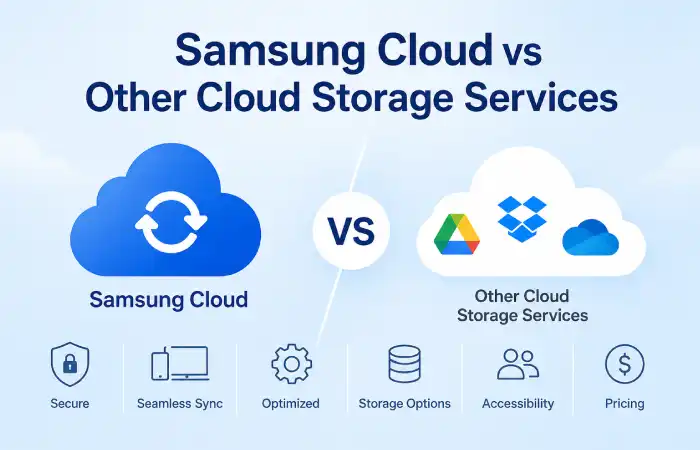
The selection of cloud storage best suited to your needs will depend largely on how you use your hardware, and the type of data you need to store. Samsung Cloud is wonderful to store and restore your Galaxy device data, but it‘s entirely different from file storage and collaboration services including Google Drive, Microsoft OneDrive, Dropbox and iCloud.
Understanding this will enable you to establish a more effective backup and storage plan in 2026.
Quick Comparison Table
| Feature | Samsung Cloud | Google Drive | OneDrive | Dropbox | iCloud |
| Device Backup | Excellent | Good | Good | Limited | Excellent |
| File Storage | Limited | Excellent | Excellent | Excellent | Good |
| Photo Backup | Limited | Excellent | Excellent | Good | Excellent |
| Samsung Integration | Excellent | Moderate | High | Low | Very Low |
| Cross-Platform Support | Moderate | Excellent | Excellent | Excellent | Limited |
| File Sharing | Limited | Excellent | Excellent | Excellent | Good |
| Collaboration Tools | Limited | Excellent | Excellent | Good | Moderate |
| Free Storage | Backup-Based | 15 GB | 5 GB | 2 GB | 5 GB |
| Paid Storage Plans | No | Yes | Yes | Yes | Yes |
Samsung Cloud Overview
Samsung Cloud is designed primarily for Samsung Galaxy users who need:
- Device backups
- Settings synchronization
- Data restoration
- Samsung Notes sync
- Samsung Pass synchronization
- Contacts and calendar sync
Advantages
- Deep Galaxy integration
- Easy device migration
- Automatic backups
- Seamless restoration process
- Samsung Account synchronization
Disadvantages
- Limited file storage capabilities
- No longer offers Samsung Cloud Drive
- Limited photo storage functionality
- Not ideal for document management
Best For
- Samsung Galaxy smartphone owners
- Device backup and recovery
- Galaxy ecosystem users
Google Drive
Google Drive is easy to use and one of the most favorite cloud sites. Has a lot of storage file options.
Key Features
- 15 GB free storage
- Google Docs integration
- File sharing and collaboration
- Cross-platform access
- Google Photos compatibility
Advantages
- Largest free storage among major providers
- Excellent collaboration tools
- Strong Android integration
- Powerful search capabilities
Disadvantages
- Device restoration isn’t as comprehensive as Samsung Cloud
- Storage shared across Google services
Best For
- Android users
- Students
- Businesses
- Content creators
Microsoft OneDrive
OneDrive is Microsoft‘s cloud storage service, built into Windows and Microsoft 365.
Key Features
- Microsoft Office integration
- Automatic PC backup
- Secure cloud storage
- Real-time collaboration
Advantages
- Excellent Windows compatibility
- Microsoft 365 integration
- Business-friendly features
- Large storage plans available
Disadvantages
- Less Samsung-specific backup support
- Free storage is limited to 5 GB
Best For
- Windows users
- Business professionals
- Microsoft 365 subscribers
Dropbox
Dropbox is still the number one among workers with its proven file sharing and synchronization services.
Key Features
- Fast file syncing
- Smart file versioning
- Team collaboration
- Cross-platform support
Advantages
- Reliable synchronization
- Excellent sharing tools
- Easy file recovery
- Strong business features
Disadvantages
- Only 2 GB free storage
- Premium plans are more expensive
Best For
- Remote teams
- Agencies
- Freelancers
- Businesses
Apple iCloud
ICloud is Apple‘s ecosystem of cloud-based services Apple provides to his users of the iPhone, iPad and Mac
Key Features
- Device backup
- Photo synchronization
- Apple ecosystem integration
- File sharing
Advantages
- Seamless Apple integration
- Easy backup process
- Strong security features
- Family sharing support
Disadvantages
- Limited Android support
- Less flexible outside Apple’s ecosystem
Best For
- iPhone users
- Mac users
- Apple ecosystem customers
Common Samsung Cloud Issues and Fixes
Backup Not Working
Causes
- Weak Wi-Fi
- Low battery
- Samsung account issues
Fix
- Check network
- Sign out/in
- Update software
- Restart device
Sync Failed Error
Causes
- Account conflict
- Outdated app
Fix
- Remove account
- Re-add Samsung account
- Force sync
Restore Not Available
Causes
- Backup expired
- Wrong Samsung account
Fix
Verify:
- Same Samsung account
- Backup still exists
Storage Full Warning
Fixes
- Delete old backups
- Remove unused devices
- Create fresh backup
Best Alternatives to Samsung Cloud Storage
- Google Drive
Best For
- Android users
- Document storage
- File sharing
Pros
- 15GB free
- Excellent collaboration
- AI-powered search
Cons
- Less Samsung integration
If you’re comparing cloud services, our Samsung Cloud vs Google Drive comparison explains storage, features, and ecosystem differences.
- Microsoft OneDrive
Best For
- Microsoft 365 users
- Windows integration
Pros
- 1TB with Microsoft 365
- Strong productivity tools
Cons
- Samsung Gallery integration ending in 2026
- Dropbox
Best For
- Professionals
- Team collaboration
Pros
- Fast synchronization
- Reliable sharing
Cons
- Small free storage
- Google Photos
Best For
- Photo backups
Pros
- AI search
- Automatic organization
Cons
- Subscription required for large libraries
Wondering which service is better? Read our Samsung Cloud vs OneDrive comparison before deciding where to store your files.
Cloud Storage Cost Comparison (2026)
| Provider | Free Storage | Paid Plans Start At |
| Samsung Cloud | Backup-focused | N/A |
| Google Drive | 15GB | $1.99/month |
| OneDrive | 5GB | $1.99/month |
| Dropbox | 2GB | $9.99/month |
| iCloud | 5GB | $0.99/month |
Pricing may vary by region.
Security and Privacy
Samsung Cloud protects user data through:
- Encrypted transfers
- Samsung Account authentication
- Secure cloud infrastructure
- Multi-device authorization
Best practices:
- Enable two-factor authentication
- Use strong passwords
- Review connected devices regularly
Expert Recommendations
For most Galaxy users in 2026:
| User Type | Recommendation |
| Casual Users | Samsung Cloud + Google Drive |
| Business Users | OneDrive |
| Students | Google Drive |
| Photographers | Google Photos |
| Samsung Ecosystem Fans | Samsung Cloud + OneDrive |
Frequently Asked Questions
Is Samsung Cloud free?
Another spec added to the Samsung accounts is, backup and sync supported, though the available feature set differs between locations.
Can Samsung Cloud store photos?
Photo storage features have evolved a lot. Samsung has stopped providing the current Gallery Sync services, and moved on to new methods to backup pictures.
How long are backups stored?
According to Samsung, this recovery might be available for not more than 12 months from the of most recent backup.
Is Samsung Cloud better than Google Drive?
Samsung Cloud is best for device backup/restoring. Google Drive is best for file storage/sharing.
Can I access Samsung Cloud from a PC?
Limited access is available through Samsung account services, but otherwise Samsung Cloud is to manage Galaxy devices.
What happens if I stop using Samsung Cloud?
Inactive backups will eventually be deleted according to the retention policy by Samsung.
Conclusion
Samsung Cloud Storage is still an important service for Galaxy owners looking for safe backups, synchronized files and quick restoration of data. Having abandoned the standard cloud-drive service and since making modifications to the storage of images, Samsung Cloud is still vital for securing the settings, messages, contacts and application data on the device itself.
With the update to OneDrive integration set to be introduced in late 2026, users are advised to look at their backup policy immediately and consider alternatives such as Google Drive, OneDrive or Dropbox for extra cloud storage.
Kashifa Jafar is a technology writer and contributor at FutureTechExpert with 4+ years of experience in technology writing and content creation.
Read Full Bio of Author →Sameena reviews selected health, wellness, technology, and digital content for clarity, factual presentation, and reader usefulness.
Read Full Bio of Reviewer →