
 Kashifa Jafar
Technology Writer & Contributor
Kashifa Jafar is a technology writer and contributor at FutureTechExpert with 4+ years of experience in technology writing and content creation.
Read Full Bio of Author →
Kashifa Jafar
Technology Writer & Contributor
Kashifa Jafar is a technology writer and contributor at FutureTechExpert with 4+ years of experience in technology writing and content creation.
Read Full Bio of Author →
 Sameena Begum
Health, Technology & Digital Content Reviewer
Sameena reviews selected health, wellness, technology, and digital content for clarity, factual presentation, and reader usefulness.
Read Full Bio of Reviewer →
Sameena Begum
Health, Technology & Digital Content Reviewer
Sameena reviews selected health, wellness, technology, and digital content for clarity, factual presentation, and reader usefulness.
Read Full Bio of Reviewer →
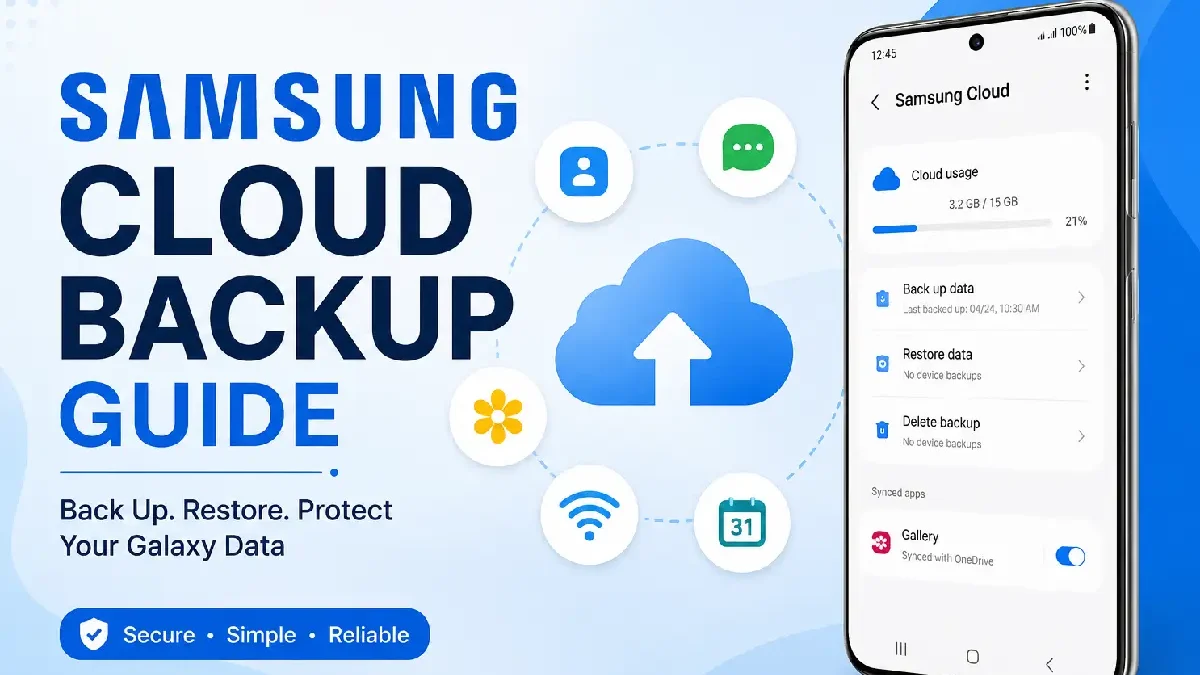
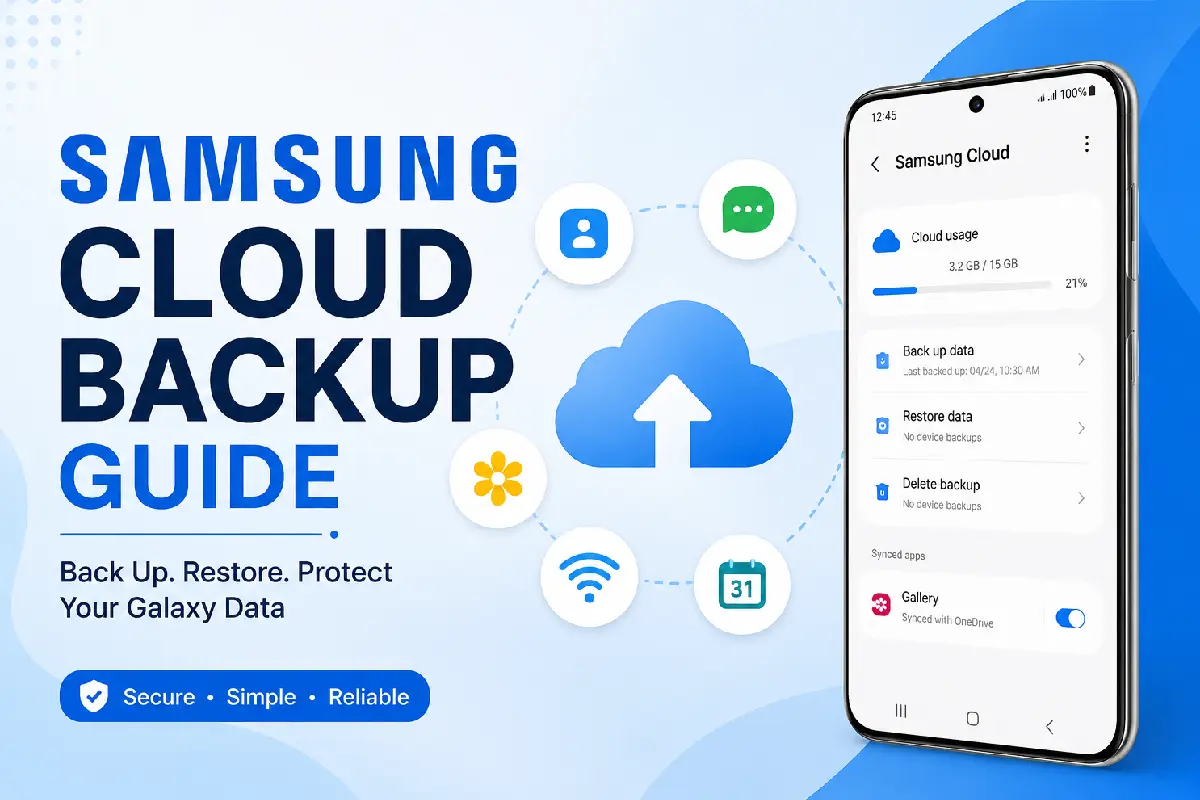
Losing crucial information from your Smartphone can be incredibly inconvenient. Whether it‘s down to you deleting it, a factory reset, or the device becoming corrupt, the Samsung Cloud Backup Guide covers everything you need to know about backing up your data on your Samsung Galaxy in 2026. This guide covers what Samsung Cloud backs up, how to set up automatic and manual backups, recover lost data, change backup preferences, and more.
Before creating backups, it’s helpful to understand Samsung Cloud Storage and how it works across Galaxy devices.
While Samsung Cloud has been there for some years, it still serves to backup critical Galaxy device setting and data, while directing users to Microsoft OneDrive for visual and file storage.
 This article is part of
Storage of Cloud Computing Resources
Samsung Cloud Backup at a Glance (2026)
| Feature | Samsung Cloud |
| Automatic Backup | Yes |
| Manual Backup | Yes |
| Restore After Reset | Yes |
| Samsung Account Required | Yes |
| Photo Storage | Microsoft OneDrive |
| Device Settings Backup | Yes |
| Contacts Backup | Yes |
| Messages Backup | Yes |
| Home Screen Layout | Yes |
| Secure Wi-Fi Settings | Supported on compatible devices |
Table of Contents
What Data Gets Backed Up
Samsung Cloud is a backup service for your important device data so you can easily restore your Galaxy phone when upgrading, resetting or replacing it. Instead of saving pictures and videos, it now backs up other various settings and data related to your Samsung account.
Typical backup items include:
- Contacts
- Call history
- Messages (SMS/MMS)
- Calendar events
- Clock settings
- Home screen layout
- Device settings
- Wi-Fi passwords
- Samsung Notes (supported models)
- Voice Recorder data
- Installed apps list
- Samsung Internet bookmarks
Not Usually Included
- Downloaded videos
- Large media folders
- Documents stored locally
- Photos and videos (handled through Microsoft OneDrive)
If you’re new to the service, this guide explains how to use Samsung Cloud Storage effectively before setting up automatic backups.
Creating Automatic Backups
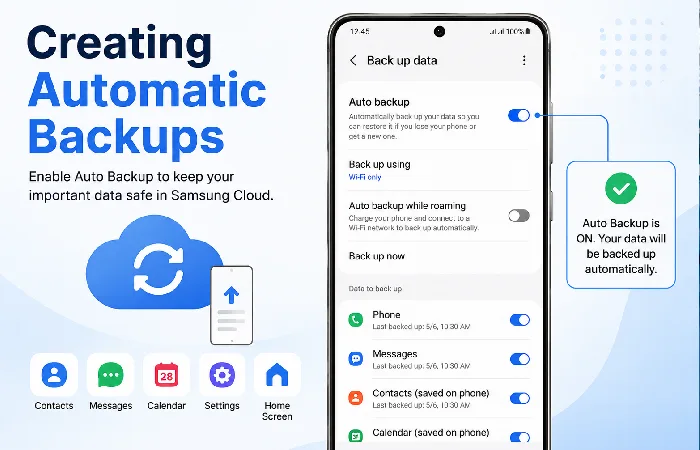
Automatic backups always have the most recent data.
Steps
- Open Settings
- Tap Samsung Account
- Select Samsung Cloud
- Open Back up data
- Enable Auto Backup
- Choose which categories to include
For the best experience:
- Connect to Wi-Fi
- Keep battery above 30%
- Leave the phone idle during backup
- Keep enough cloud storage available
Automatic Backup Best Practices
| Recommendation | Benefit |
| Enable Wi-Fi only | Saves mobile data |
| Charge device overnight | Prevents interruptions |
| Weekly backup check | Confirms successful backups |
| Remove unnecessary data | Faster backups |
Manual Backup Process
Want to do a quick backup before you reset your device or carry out a big update? Use a manual backup.
How to Back Up Now
- Open Settings
- Tap Samsung Account
- Open Samsung Cloud
- Select Back up data
- Choose the categories
- Tap Back up now
- Wait until the process completes
Do not disconnect from Wi-Fi or restart your phone during the backup process.
Manual vs Automatic Backup
| Feature | Manual | Automatic |
| User Starts Backup | Yes | No |
| Scheduled | No | Yes |
| Best Before Factory Reset | Excellent | Good |
| Internet Required | Yes | Yes |
Restoring Backup Files
Easiest way to restore your Samsung Cloud backup is when initialising a new Galaxy device or after a reset to factory defaults.
Restore Process
- Sign in using the same Samsung Account.
- Open Settings.
- Go to Samsung Cloud.
- Tap Restore data.
- Select the desired backup.
- Choose the data categories.
- Tap Restore.
The restoration time depends on:
- Internet speed
- Backup size
- Number of apps
- Device performance
If your priority is protecting memories, learn how to back up photos with Samsung Cloud Storage safely and efficiently.
Restore Time Estimates
| Backup Size | Approximate Time |
| Under 500 MB | 2–5 minutes |
| 500 MB–2 GB | 5–15 minutes |
| 2–5 GB | 15–30 minutes |
| Larger Backups | 30+ minutes |
Managing Backup Settings
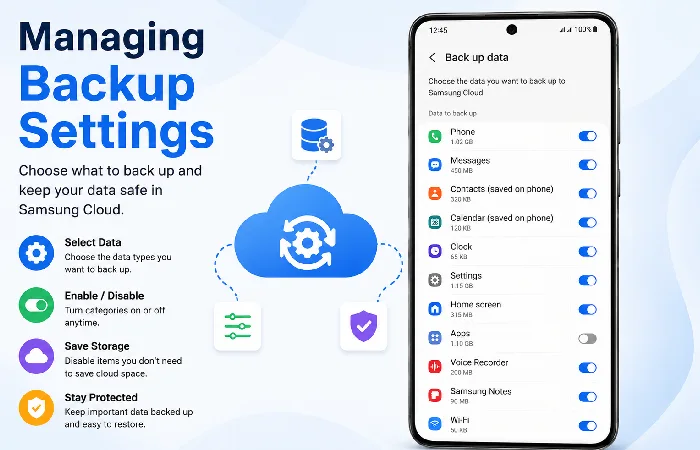
Always check your backup options so that only relevant data is being synchronized.
Recommended settings include:
- Enable Contacts
- Enable Calendar
- Enable Messages
- Enable Device Settings
- Enable Samsung Notes
- Disable categories you don’t need
Managing your backup properly will help you reduce the amount of space you need and will help speed up future backups.
Storage Management Tips
| Tip | Result |
| Delete outdated backups | More available storage |
| Remove unused apps | Smaller backup size |
| Sync photos to OneDrive | Better media management |
| Review backup monthly | Keeps data current |
Before backing up large files, check the current Samsung Cloud Storage limits to avoid storage issues.
Common Backup Problems
Even trusted cloud services sometimes run into trouble. Thankfully, the majority of Samsung Cloud backup errors have easy fixes.
Backup Stuck
Possible causes:
- Weak internet connection
- Low battery
- Samsung server maintenance
Fixes:
- Restart the device
- Connect to stable Wi-Fi
- Retry after several minutes
Backup Failed
Possible reasons:
- Samsung Account issue
- Storage limitation
- Outdated software
Solutions:
- Sign out and back in
- Update One UI
- Free cloud storage
- Restart the phone
Restore Doesn’t Complete
Try the following:
- Check internet speed
- Verify Samsung Account
- Confirm backup exists
- Retry restoration
Missing Photos
Pictures are no longer stored directly in Samsung Cloud.
Instead:
- Open Microsoft OneDrive
- Verify synchronization
- Restore images from OneDrive if needed
Samsung users can also compare Samsung Cloud Storage vs OneDrive to understand which platform better fits their backup needs.
Samsung Cloud vs Other Backup Solutions (2026)
| Feature | Samsung Cloud | Google One | Microsoft OneDrive |
| Device Settings | Excellent | Good | Limited |
| Contacts | Yes | Yes | No |
| Photos | Via OneDrive | Yes | Yes |
| File Storage | Limited | Yes | Yes |
| Samsung Integration | Excellent | Moderate | High |
| Galaxy Device Restore | Excellent | Good | Limited |
Best Practices for Samsung Cloud Backup
- Enable automatic backups.
- Connect to Wi-Fi whenever possible.
- Review backup status weekly.
- Keep your Samsung account secure with two-factor authentication.
- Back up before every major software update.
- Verify backup completion before performing a factory reset.
- Use Microsoft OneDrive for photos and videos.
Following these practices significantly reduces the risk of permanent data loss.
If you’re deciding between cloud services, compare Samsung Cloud Storage vs Google Drive to choose the best backup solution.
Frequently Asked Questions
Is Samsung Cloud completely free?
The Samsung Cloud backup service is available to supported Galaxy devices, with photo storage via Microsoft OneDrive.
Samsung Cloud and photography, is it backing up photos?
No. Photos and videos are now uploaded and synced via Microsoft OneDrive.
How do I restore my backup to a new Samsung phone?
Yes. Sign in with same Samsung Account and restore the available backup in setup or later from Settings.
Wireless Internet and Samsung Cloud: Is Wi-Fi necessary?
Sometimes mobile data can work for backups, but Wi-Fi is suggested.
How do I find out my phone‘s password?
Automatic daily or weekly backups are supported; manual backup should be done before a software update or factory reset.
Conclusion
Samsung Cloud is still one of the most user-friendly ways to safeguard the Galaxy that you‘re using in 2026. With help from Microsoft OneDrive to store images and videos and other media, it‘s still a good way for a Samsung owner to protect their essentials.
By switching on for daily, weekly or monthly backups, regularly checking you‘ll always be up-to-date in your preferred backup settings and knowing how to recover your backups, then you‘ll be in good stead to recover from dropping your phone, upgrading your device or giving your phone a factory reset.
Kashifa Jafar is a technology writer and contributor at FutureTechExpert with 4+ years of experience in technology writing and content creation.
Read Full Bio of Author →Sameena reviews selected health, wellness, technology, and digital content for clarity, factual presentation, and reader usefulness.
Read Full Bio of Reviewer →