
 Kashifa Jafar
Technology Writer & Contributor
Kashifa Jafar is a technology writer and contributor at FutureTechExpert with 4+ years of experience in technology writing and content creation.
Read Full Bio of Author →
Kashifa Jafar
Technology Writer & Contributor
Kashifa Jafar is a technology writer and contributor at FutureTechExpert with 4+ years of experience in technology writing and content creation.
Read Full Bio of Author →
 Sameena Begum
Health, Technology & Digital Content Reviewer
Sameena reviews selected health, wellness, technology, and digital content for clarity, factual presentation, and reader usefulness.
Read Full Bio of Reviewer →
Sameena Begum
Health, Technology & Digital Content Reviewer
Sameena reviews selected health, wellness, technology, and digital content for clarity, factual presentation, and reader usefulness.
Read Full Bio of Reviewer →
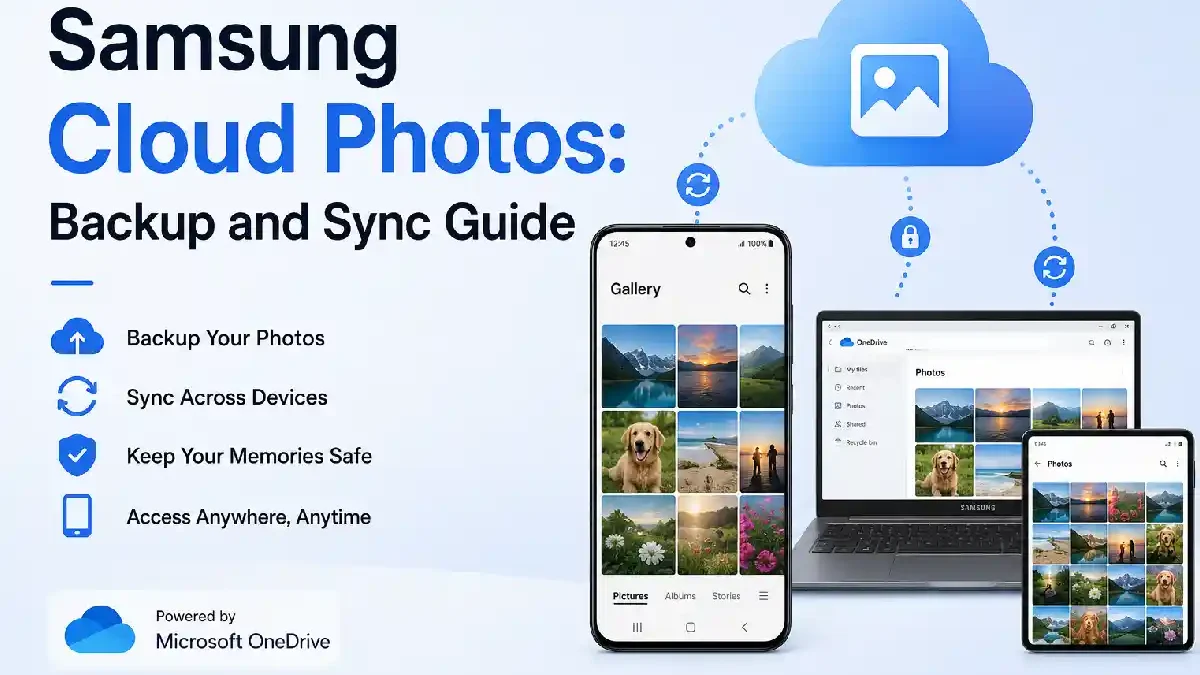
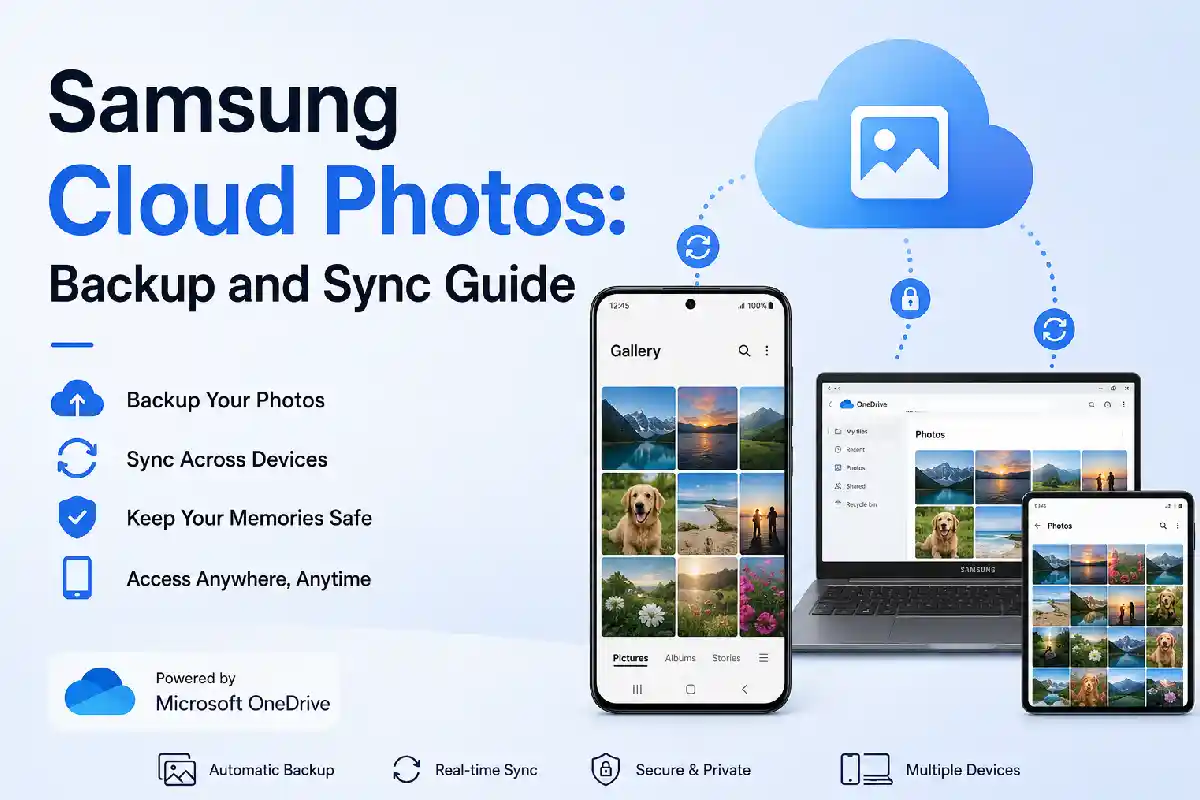
If you’re looking to find Samsung Cloud Photos you‘re likely wondering where they went and how to back them up today. A few years back Samsung officially removed the ability to store photos inside Samsung Cloud, replacing it with Microsoft OneDrive. Now in 2026 Samsung Galaxy users have several good options for backing up including OneDrive, Google Photos, an external drive, and backups to the device.
An introduction to Samsung’s photo storage history, modern-day backup system, recovery options and how to always remember your memories.
 This article is part of
Storage of Cloud Computing Resources
Samsung Cloud Photos at a Glance
| Feature | Samsung Cloud (Old) | OneDrive | Google Photos |
| Gallery Backup | Discontinued | Yes | Yes |
| Automatic Sync | No | Yes | Yes |
| Samsung Gallery Integration | No | Native | Partial |
| Cross-platform | Limited | Excellent | Excellent |
| Free Storage (2026) | N/A | 5 GB | 15 GB Shared |
| AI Search | No | Basic | Advanced |
| Family Sharing | No | Yes | Yes |
Resources
| Platform | Official Resource |
| Samsung Cloud | https://www.samsung.com/support |
| Microsoft OneDrive | https://www.microsoft.com/onedrive |
| Google Photos | https://photos.google.com |
If you’re new to the service, start by learning Samsung Cloud Storage to understand its features, supported devices, and storage options before managing your photos.
What Was Samsung Cloud Photos?
Samsung Cloud Photos was Samsung‘s integrated cloud storage service that would backup your photo, videos, contacts, notes and device configuration.
It worked perfectly within Samsung Gallery so when people moved from one device to another, they could just restore the images.
Samsung also discontinued Gallery Sync and Drive storage services prompting users to switch to Microsoft OneDrive.
Table of Contents
Photo Storage History
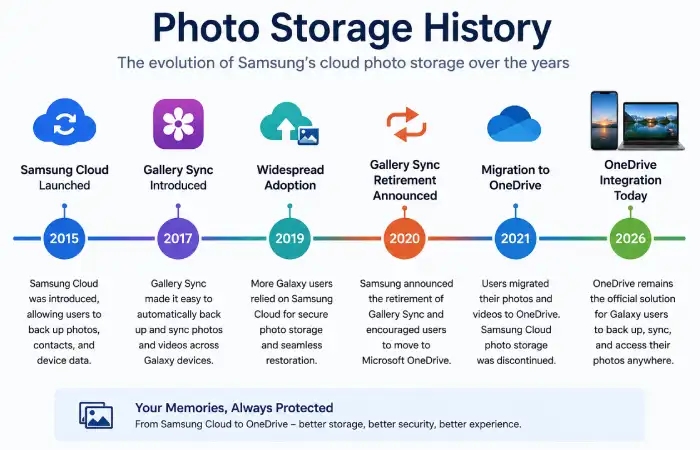
Understanding the evolution of Samsung‘s management of photo storage is important. Over the past 10 years, Samsung Cloud has been enhanced to serve as an integrated Gallery Sync, enabling all Galaxy customers to easy move their photos, videos, and albums seamlessly around their devices. This simplified the transition to a new Samsung phone.
2018 also signaled a partnership with Samsung and Microsoft. Since this deal, Samsung Gallery Sync and Samsung Cloud Drive will be discontinued allowing users to move their videos/photos to Microsoft OneDrive before deadline. After the deadline Samsung Cloud will cease to sync, or store photos.
Currently, Samsung suggests that customer use OneDrive for smooth synchronization with the Samsung Gallery app, numerous customers will like to use the Google Photos because of its powerful smart search function, auto organize and easy synchronization across different devices.
| Year | Major Update |
| 2015 | Samsung Cloud introduced |
| 2017 | Gallery Sync added |
| 2019 | Cloud storage widely adopted |
| 2020 | Samsung announced Gallery Sync retirement |
| 2021 | Migration to OneDrive completed |
| 2026 | OneDrive remains Samsung’s recommended cloud storage |
Why Samsung Ended Photo Storage
Several factors influenced the decision:
- Partnership with Microsoft
- Better cross-platform support
- Lower infrastructure costs
- Improved Office ecosystem integration
- Unified cloud experience
Before organizing or syncing your photo library, it’s helpful to understand how to use Samsung Cloud Storage for everyday backups and file management.
Current Photo Backup Options
With the end of Samsung Cloud Photos, Galaxy owners have multiple reliable solutions to back up and protect photos. The most suitable one will vary based on criteria like storage capacity, desire for on-cloud or local backups, and which mobile ecosystem is more compatible.
By 2026, Microsoft OneDrive is the official collaboration partner of Samsung. While Google Photos, external storage cards, or their computers are still good choices.
| Backup Option | Best For | Pros | Cons |
| OneDrive | Samsung users | Native integration | 5 GB free |
| Google Photos | Android users | AI search | Shared storage |
| External SSD | Professionals | Offline backup | Manual |
| NAS Storage | Businesses | Full control | Initial cost |
| PC Backup | Home users | Free | Manual sync |
Recommendation
For most users:
- OneDrive for Samsung Gallery
- Google Photos for AI organization
- External drive for long-term backup
This combination offers maximum protection.
To avoid losing important memories, follow this Samsung Cloud backup guide for step-by-step instructions on protecting your photos and other data.
OneDrive Integration
Microsoft OneDrive and Samsung Gallery are now integrated.
Benefits include:
- Automatic uploads
- Device synchronization
- Photo restoration
- Shared albums
- Windows integration
- Microsoft 365 compatibility
How to Enable OneDrive
- Open Gallery
- Tap Menu
- Open Settings
- Choose Sync with OneDrive
- Sign into Microsoft account
- Enable automatic syncing
Your pictures will start uploading using Wi-Fi or your cell data according to your preference.
Users looking for Microsoft’s ecosystem should also explore Samsung Cloud vs OneDrive before choosing a long-term photo backup solution.
Syncing Gallery Content
Samsung Gallery syncs your images and videos as a default setting, uploading them to Samsung Cloud by default so they can be accessible on other devices as well as not being lost due to accidental deletion. However, since Samsung Cloud Photos is no more, the company now rely on Microsoft OneDrive.
As soon as you turn it on, all of your new pictures and videos will be uploaded automatically so you can see the content on your Galaxy phone, Windows PC or tablet, or you can browse.
How Samsung Gallery Sync Works
| Step | What Happens |
| 1 | Capture a photo or video using your Samsung Galaxy device. |
| 2 | Samsung Gallery detects new media files. |
| 3 | OneDrive automatically uploads the files when connected to Wi-Fi or mobile data (depending on your settings). |
| 4 | Photos are securely stored in your Microsoft OneDrive account. |
| 5 | The same images become available across all devices signed in with your Microsoft account. |
How to Enable Gallery Sync with OneDrive
Follow these simple steps to start syncing your photos:
- Open the Gallery app on your Samsung Galaxy device.
- Tap the Menu (☰) or More option.
- Select Settings.
- Tap Sync with OneDrive.
- Sign in with your Microsoft account.
- Grant the required permissions.
- Enable Gallery Sync.
- Choose whether uploads should occur over Wi-Fi only or Wi-Fi and mobile data.
Your photos and videos will automatically sync to your device in the background after setup.
If you’re deciding where to keep your photos, compare Samsung Cloud vs Google Drive to see which storage solution better fits your needs.
Recovering Lost Photos
A lost photo is not necessarily a permanently removed photo.
Please try these recovery methods step by step.
Method 1: Samsung Gallery Trash
Deleted pictures are kept for around 30 days.
Open:
Gallery → Trash → Restore
Method 2: OneDrive Recycle Bin
If Gallery Sync was enabled:
- Open OneDrive
- Visit Recycle Bin
- Restore photos
Method 3: Google Photos Trash
Google photos is not very different though. It deletes your images from the trash after 60 days.
Method 4: Samsung Smart Switch Backup
If you backed up before you reset, you should do a restore via Smart Switch.
Method 5: Professional Recovery Software
Useful when:
- Storage corruption occurred
- Factory reset happened
- SD card failed
Get off the phone as quickly as possible to increase chance of recovering.
Knowing the Samsung Cloud storage limits can help you estimate how many photos you can safely store before needing additional space.
Best Practices for Photo Backup
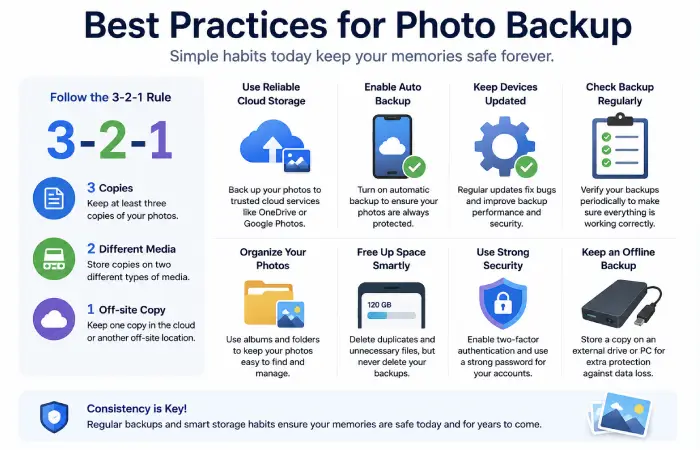
Follow the 3-2-1 backup strategy.
- Three copies of data
- Two different storage types
- One off-site backup
Example:
| Copy | Storage |
| Original | Samsung Phone |
| Backup 1 | OneDrive |
| Backup 2 | External SSD |
This technique also lowers the chance of data loss A method that produces minimal loss of data
Comparison: OneDrive vs Google Photos
| Feature | OneDrive | Google Photos |
| Samsung Integration | 5/5 | 3/5 |
| AI Search | 3/5 | 5/5 |
| Facial Recognition | Good | Excellent |
| Editing Tools | Good | Excellent |
| Windows Support | Excellent | Good |
| Office Integration | Excellent | Limited |
| Storage Plans | Flexible | Google One |
Which Should You Choose?
Choose OneDrive if you:
- Own Samsung devices
- Use Windows
- Subscribe to Microsoft 365
Choose Google Photos if you:
- Prefer AI search
- Want automatic organization
- Use multiple Android brands
Frequently Asked Questions
Does Samsung Cloud still save images?
No. Samsung ended Gallery Sync and photo storage. OneDrive is now the default backup tool.
Where have all my photos gone in my Samsung Cloud?
If you moved prior to the discontinuation, you would have your photos in One Drive.
Is it possible to restore the images I previously uploaded to my Samsung Cloud?
Maybe. Review Samsung Gallery Trash, OneDrive Recycle Bin, Google Photos Trash, use Smart Switch backups or external backups.
Is it free for Samsung users to use on OneDrive?
Yes, there is 5 GB of free space included on MS cloud. To get more space a paid plan is necessary.
Which is better: OneDrive or Google Photos?
One Drive has best Samsung integration, while Google Photos is better at AI-based organization, searching and photo management.
Conclusion
Samsung Cloud Photos may be gone as an independent photo storage solution, but those with a Samsung will find their backup options have never been more comprehensive. From easy OneDrive setup to Google Photos compatibility and trusty local backups, preserving your memories is better than ever in 2026.
Kashifa Jafar is a technology writer and contributor at FutureTechExpert with 4+ years of experience in technology writing and content creation.
Read Full Bio of Author →Sameena reviews selected health, wellness, technology, and digital content for clarity, factual presentation, and reader usefulness.
Read Full Bio of Reviewer →